
IPTV Buffering: How to Fix It in 2026 (10 Proven Fixes)
IPTV buffering usually comes down to five things: your connection, your Wi-Fi, your app settings, ISP throttling, or the provider itself. Here is how to fix each one fast.
IPTV buffering usually comes down to five things: your connection, your Wi-Fi, your app settings, ISP throttling, or the provider itself. Here is how to fix each one fast.
Key takeaways
- Most IPTV buffering is fixed by a wired connection, faster DNS and a bigger app buffer.
- You need about 10 Mbps for HD and 25 Mbps for 4K — test your real speed first.
- If it still buffers at peak time with a good connection, the fault is your providerx27s servers, not your setup.
IPTV buffering is the most common problem viewers run into, and the good news is that most of the time you can fix it yourself in a few minutes. When a stream stalls, spins or drops to a lower quality, it almost always comes down to one of five things: your internet speed, your Wi-Fi, your app settings, ISP throttling, or the IPTV provider itself. Work through the fixes below in order and you will clear up the vast majority of IPTV buffering for good.
Why IPTV buffering happens
Live IPTV is different from Netflix or YouTube. Those services pre-load (buffer) several seconds ahead, so a brief dip in your connection goes unnoticed. Live TV has almost no head start, so the moment your bandwidth drops, the picture stutters. That is why IPTV buffering shows up first on live channels, especially during a big match when everyone is watching at once. Knowing this, the fixes are simple: give the stream more stable bandwidth, and take pressure off the connection.
1. Check your internet speed
Run a quick test on the same device you stream on using a tool like Speedtest or Fast.com. As a rule of thumb you want at least 10 Mbps for HD, 25 Mbps for 4K, and more if several people stream at once. If your speed is well below that, IPTV buffering is expected and no app setting will fix it. Restart your router, and if it is still slow, call your provider.
2. Switch from Wi-Fi to a wired connection
This single change fixes more IPTV buffering than anything else. Wi-Fi is shared, unstable and drops packets, all of which live TV hates. If you can, run an Ethernet cable to your Firestick, box or Smart TV. If a cable is not possible, move the device closer to the router, use the 5 GHz band, and keep it away from microwaves and thick walls.
3. Change your DNS
Your default DNS is often slow or, worse, used by your ISP to throttle streaming. Switching to Cloudflare (1.1.1.1) or Google (8.8.8.8) in your device or router settings can noticeably smooth playback and speed up channel zapping. It takes two minutes and is completely reversible.
4. Adjust your IPTV app settings
Most players let you tune playback. In IPTV Smarters or TiviMate, increase the buffer size so the app pre-loads more, and toggle hardware decoding on or off (if you see audio but a black screen, flip this setting). Clearing the app cache and reinstalling the player also clears out corrupted data that causes IPTV buffering. If you are new to these apps, our beginner IPTV guide walks through the basics.
5. Stop ISP throttling with a VPN
Some internet providers deliberately slow down streaming traffic during peak hours. If your speed test looks fine but IPTV still buffers every evening, throttling is the likely cause. A reputable VPN hides your streaming from the ISP and often restores full speed. Our guide on bypassing ISP blocks covers the best options.
6. Reduce network congestion
If other people in the house are gaming, downloading or streaming in 4K, IPTV is usually the first thing to buffer. Pause big downloads, cap other 4K streams, and, if your router supports it, set a QoS rule that gives your streaming device priority. Rebooting the router once a week keeps things clean.
When IPTV buffering is your provider, not you
Here is the honest truth the other guides skip: if your speed is good, you are wired in, your DNS is fixed and it still buffers every night, the problem is your provider’s servers, not your setup. Cheap or oversold services collapse under load, especially during live sport, and there is nothing you can change at home to fix an overloaded server. That is where a properly built provider matters. iBoostv runs load-balanced, anti-freeze 4K servers designed to hold a steady picture when a big match pulls a crowd — the exact moment weaker services fall apart. If you have done everything above and still buffer, switching providers is the fix.
Still buffering? Quick checklist
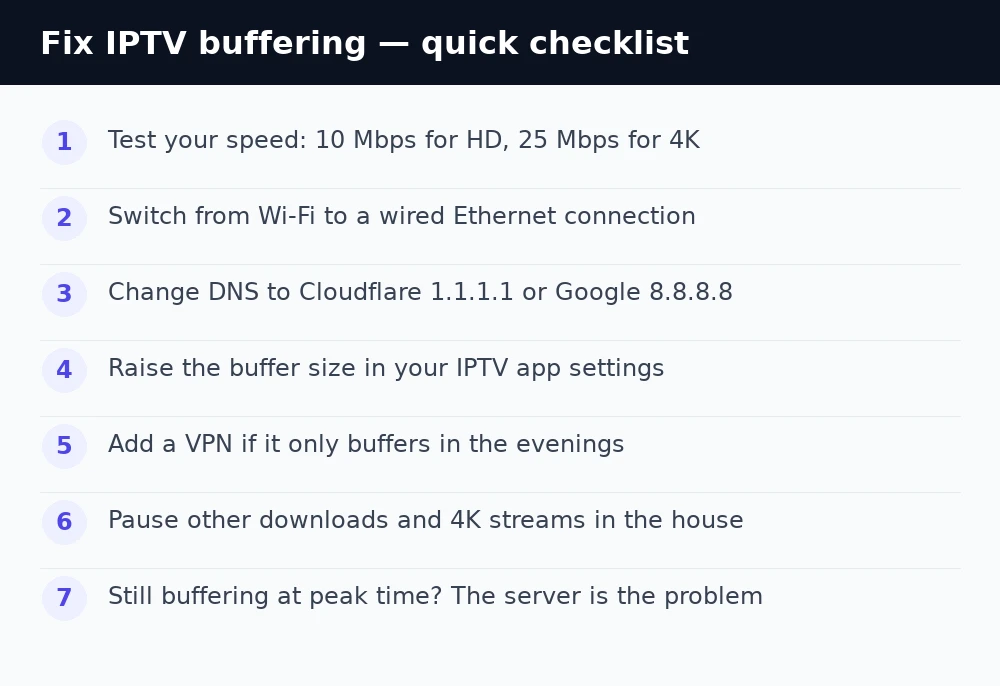
Before you give up: test your speed, plug in an Ethernet cable, switch DNS to 1.1.1.1, raise the buffer size in your app, add a VPN if evenings are worst, and pause other heavy devices. If none of that holds during peak time, it is the server — move to a provider whose network is actually built for live 4K. For more help, see our IPTV troubleshooting hub and the guide to fixing playback errors on IPTV Smarters.
Enjoying iBoostv? Get it for free.
Share your referral link and earn a free month for every person who subscribes. No limit — refer enough people and your subscription pays for itself.
Start earning free monthsFrequently asked questions
Why does my IPTV keep buffering?
Usually a weak or shared Wi-Fi connection, slow DNS, ISP throttling, or an overloaded provider. Work through speed, wired connection, DNS and app buffer settings first.
What internet speed do I need for IPTV?
Around 10 Mbps for HD and 25 Mbps for 4K, with extra headroom if several devices stream at once.
Does a VPN stop IPTV buffering?
It can, if your ISP throttles streaming. A VPN hides the traffic and often restores full speed during peak evening hours.
My internet is fast but IPTV still buffers — why?
That points to the providerx27s servers being overloaded. No home setting fixes an oversold server; a provider with anti-freeze, load-balanced servers is the fix.
