Are you tired of high cable bills and want to upgrade your streaming experience? Setting up
IPTV on Kodi works well once the PVR client is set up.
With Kodi's versatility and
iBoostv IPTV, you can access 40,000+
live IPTV channels, including live sports, movies, TV shows, and 4K content—all without the traditional cable hassle. Whether you want to watch your favorite local channels or stream international content in stunning HD and 4K, Kodi makes it easy to manage your IPTV subscription. This guide will walk you through the easy steps to get
iBoostv IPTV working on Kodi, so you can start enjoying
live TV,
on-demand movies,
sports streaming, and more.
Ready to cut the cord? Let’s dive into setting up
iBoostv IPTV on Kodi today!
Why Choose IPTV for Kodi?
Kodi is one of the most popular media centers for streaming, and when you add IPTV, you get access to thousands of live TV channels, including your favorite sports, movies, news, and more. It's a straight
cable replacement, especially for those who want a high-quality streaming experience at a fraction of the price of traditional cable.
At
iBoostv, we run
4K IPTV plans with over
40,000 live channels in HD and 4K. With our IPTV service, you can stream everything from live sports to the latest movies and TV shows. It also works with Kodi.
Step 1: Pick the Best IPTV Provider for Kodi
Before you get started, you need a reliable IPTV provider. Not all IPTV services are created equal, so choose one that offers a great variety of channels and high-quality streaming.
At
iBoostv, we specialize in providing 40,000+ channels in
HD and 4K. With our IPTV subscription, you’ll never miss a game or your favorite show. Check out our
plans to get started!
Step 2: Install Kodi on Your Device
If you're looking to set up
IPTV on Kodi and need some help, we've got you covered! Watch our video guide below for a detailed, step-by-step demonstration on how to easily install
iBoostv IPTV on Kodi. If you have any questions or need assistance, feel free to reach out to us via WhatsApp or email, and we’ll walk you through the installation process for
free.
Before you begin:
If you haven’t installed
Kodi yet, visit the official Kodi website to download the latest version for your device.
CLICK HERE to Download Kodi and get started!
Make sure your
Kodi installation is up to date for the best experience with
iBoostv IPTV.
Step 3: Enable Unknown Sources on Kodi
Kodi doesn’t allow third-party add-ons by default, so you’ll need to enable
Unknown Sources before you can install the IPTV add-on.
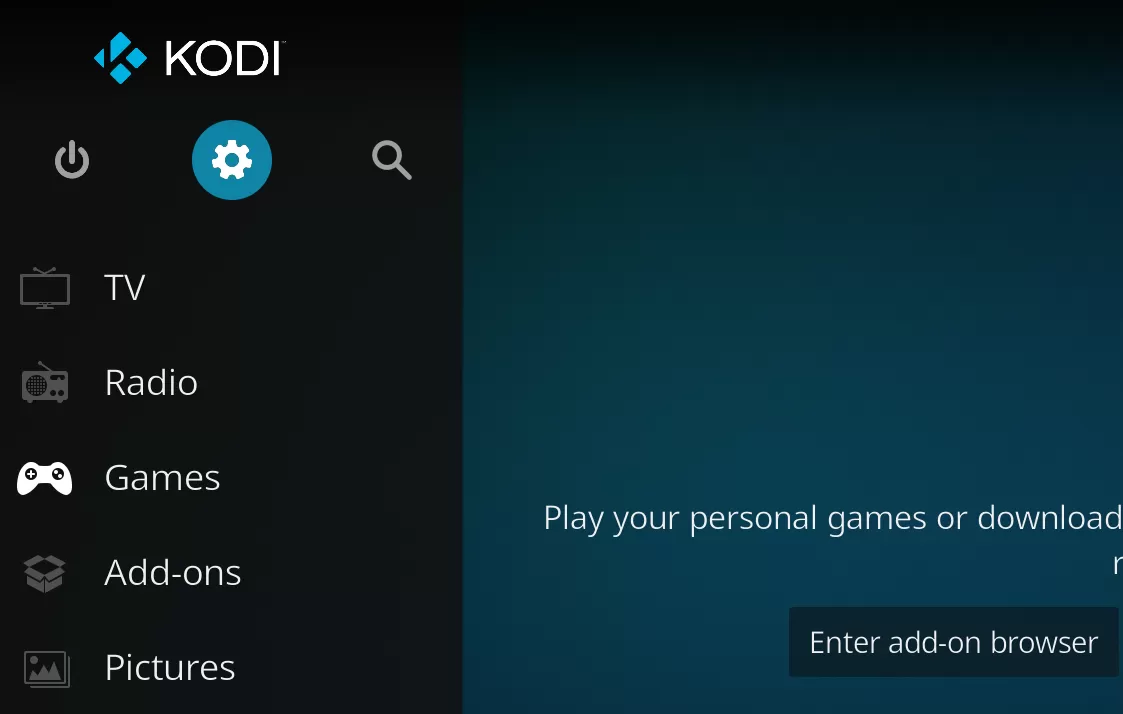
Here’s how to do it:
- Open Kodi, click on Settings (gear icon).
- Select System and then click on Add-ons.
- Toggle the switch to enable Unknown Sources.
This allows you to install add-ons from external sources, like the PVR IPTV Simple Client.
Step 4: Install the PVR IPTV Simple Client
Now comes the fun part: installing the PVR IPTV Simple Client on Kodi. This add-on is essential for streaming IPTV channels.
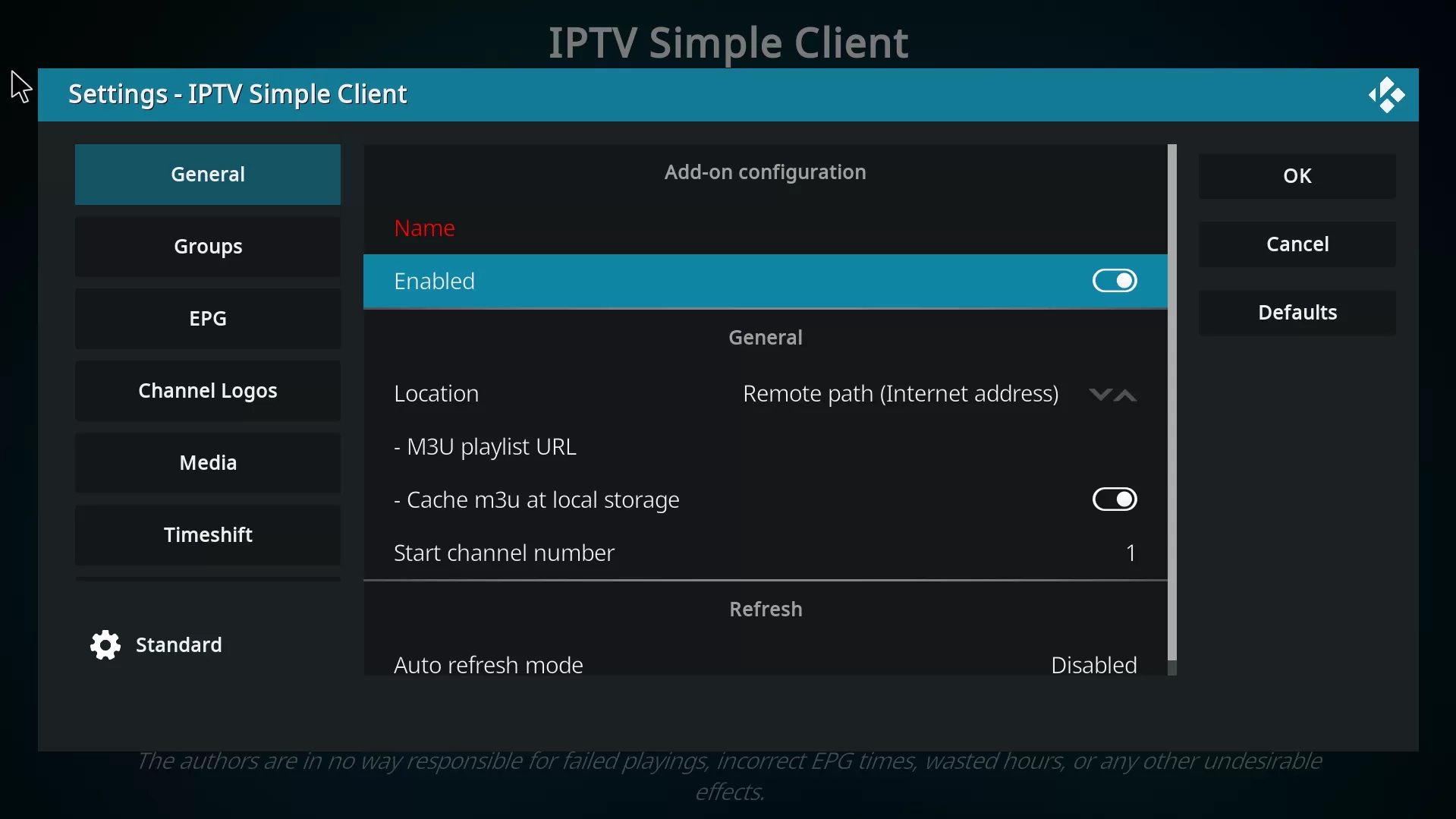
To install it:
- Go to Add-ons in Kodi.
- Click Install from repository.
- Scroll down to PVR Clients and select PVR IPTV Simple Client.
- Click Install.
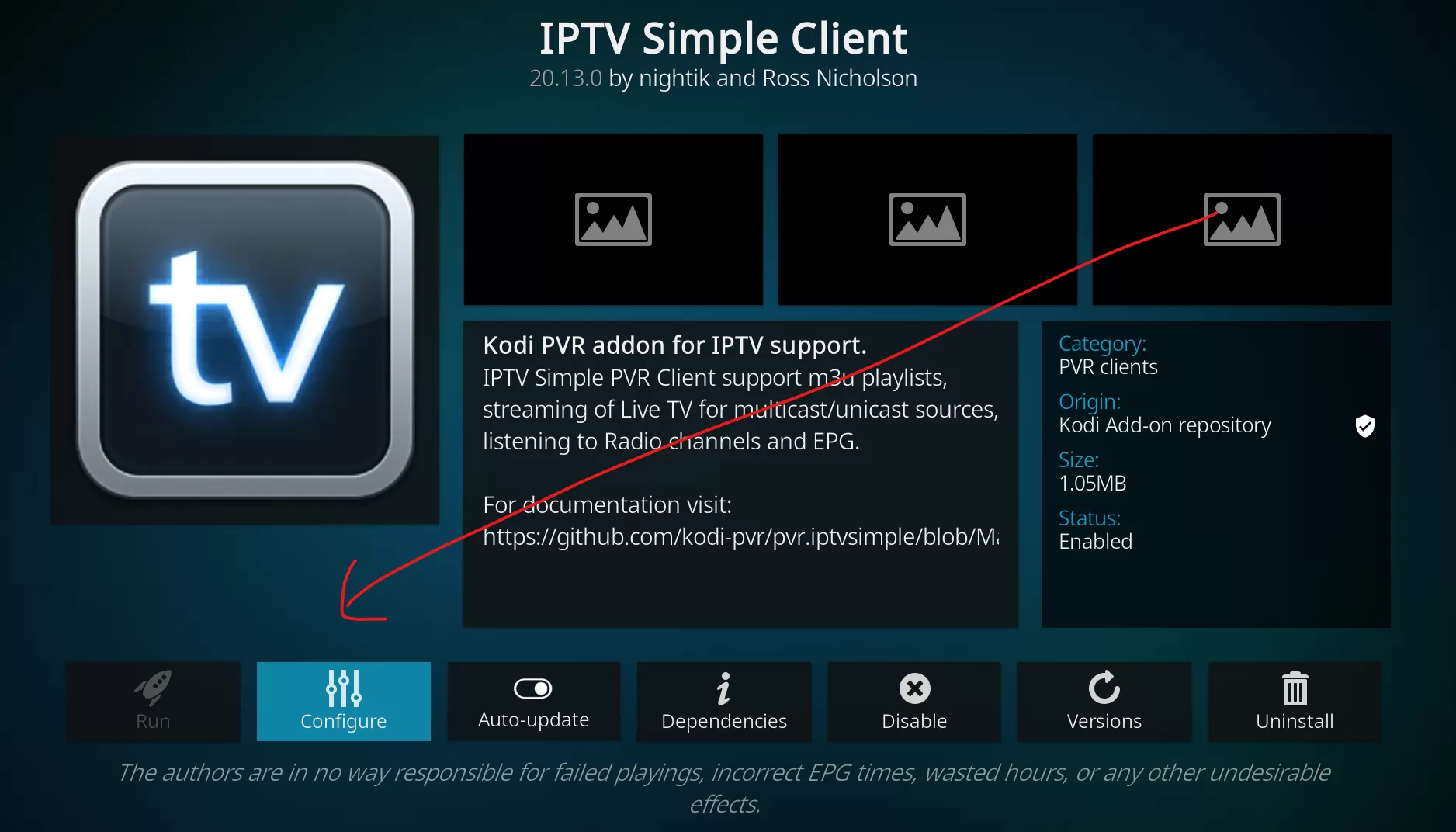
Once it’s installed, you’ll need to configure it to start streaming your IPTV channels.
Step 5: Load Your IPTV Channels on Kodi
With the PVR IPTV Simple Client installed, it’s time to load your IPTV channels. You’ll need the
M3U playlist URL from your IPTV provider to do this.
Here’s how:
- Go back to Settings and select the PVR IPTV Simple Client add-on.
- Click on Configure and paste your M3U playlist URL that you'll get from iBoostv IPTV PROVIDER.
- Click OK to save the settings.
Your IPTV channels should now load and be ready for streaming. Scroll your channel list with the Kodi remote or a keyboard.
Step 6: Tips for Smooth Streaming
For the best experience while streaming IPTV on Kodi, here are some helpful tips:
- Use a Wired Connection: For a more stable stream, connect your device to the internet using an Ethernet cable.
- Check Your Internet Speed: A stable internet connection is key. We recommend at least 25Mbps for 4K streaming.
- Keep Kodi Updated: Make sure you’re using the latest version of Kodi for optimal performance and compatibility with add-ons.
Start Streaming Today with iBoostv IPTV
Now that you know
how to set up IPTV on Kodi, it’s time to enjoy endless entertainment. With
iBoostv IPTV, you get access to thousands of channels in
HD and
4K quality, all at an affordable price. Our plans offer something for everyone, from sports lovers to movie buffs.
Don't miss out – check out our
plans and start streaming today!
Looking for the
best IPTV service to pair with Kodi? Check out our
iBoostv IPTV Reviews to see why our customers love our
live IPTV channels. With unbeatable content, including live sports, movies, and 4K shows, iBoostv covers live sport, films and 4K channels on one IPTV subscription.
Become an IPTV Reseller:
Interested in offering IPTV to your clients? See our
IPTV Reseller Plans and start your own IPTV business with iBoostv’s top-tier service. We provide everything you need to get started and grow your IPTV business.
How to Install IPTV on Firestick:
If you’re using a Firestick, we’ve got you covered! Learn how to
install IPTV player on Firestick with our easy-to-follow guide. Get IPTV running on your Firestick in about five minutes.
M3U to Xtream Codes Converter:
If you need to convert your IPTV playlists, our
M3U to Xtream Codes Converter converts it in one step. Easily convert M3U playlists to Xtream Codes for smoother IPTV access and better compatibility with your devices.
How to add IPTV to Kodi with the IPTV Simple Client
Kodi does not stream IPTV on its own — you add your channels through its built-in PVR add-on, the IPTV Simple Client. Once it is set up, your live TV, EPG and catch-up all appear inside Kodi like any other source.
Step 1 — Enable the IPTV Simple Client
Open Kodi, go to Add-ons → My add-ons → PVR clients → PVR IPTV Simple Client and press Enable. This is the player that turns Kodi into an IPTV app.
Step 2 — Add your M3U or Xtream Codes login
In the Simple Client settings choose General, set the location to your provider’s M3U URL, or switch the connection type to Xtream Codes and enter the server URL, username and password from iBoostv.
Step 3 — Turn on the TV guide (EPG)
Under the EPG Settings tab, paste your XMLTV/EPG URL so Kodi shows a full 7-day guide with programme names, times and catch-up.
Best Kodi setup for smooth IPTV
For the steadiest playback, run Kodi on a device with a wired connection or strong Wi-Fi, keep Kodi updated, and clear the cache if channels start to stutter. A fast IPTV provider matters more than the box: iBoostv’s anti-freeze 4K servers hold up when a big match pulls a crowd.
Fixing IPTV buffering on Kodi
If IPTV buffers in Kodi, check your internet speed (10 Mbps for HD, 25 Mbps for 4K), lower the stream quality in the app, or add a VPN if your ISP throttles streaming. Most freezing comes from the connection or an overloaded provider, not Kodi itself.
Kodi vs a dedicated IPTV player
Kodi is powerful and free, but if you just want live TV without the setup, a dedicated IPTV player like IPTV Smarters, TiviMate or IBO Player is simpler. Either way you need an active iBoostv subscription — the app is only the player.