
IPTV Smarters Not Working? 6 Fixes for 2026 (Black Screen Too)
IPTV Smarters not working usually means an expired login, a decoder black screen, a stale cache or a dead server. Here is how to fix each one in minutes.
IPTV Smarters not working usually means an expired login, a decoder black screen, a stale cache or a dead server. Here is how to fix each one in minutes.
Key takeaways
- Most IPTV Smarters not working cases are a lapsed subscription or a mistyped login - check those first.
- A black screen with sound is a decoder issue: switch the player and toggle hardware decoding.
- If your login is valid but every channel is dead, the providerx27s server is down, not the app.
IPTV Smarters not working is one of the most searched IPTV problems, and almost every case falls into a handful of causes: an expired or mistyped login, a black screen from the wrong decoder setting, a stale app cache, an out-of-date version, or a provider whose servers are down. Work through the checks below in order and you will get IPTV Smarters Pro (or IPTV Smarters Player Lite) playing again in a few minutes.
Why IPTV Smarters stops working
IPTV Smarters is only a player — it does not supply channels. It logs into your provider with an Xtream Codes username and password or an M3U URL, then plays whatever that server sends. So when IPTV Smarters is not working, the fault is almost never the app itself; it is the login, the device settings, or the service behind it. That is good news, because each of those is quick to fix.
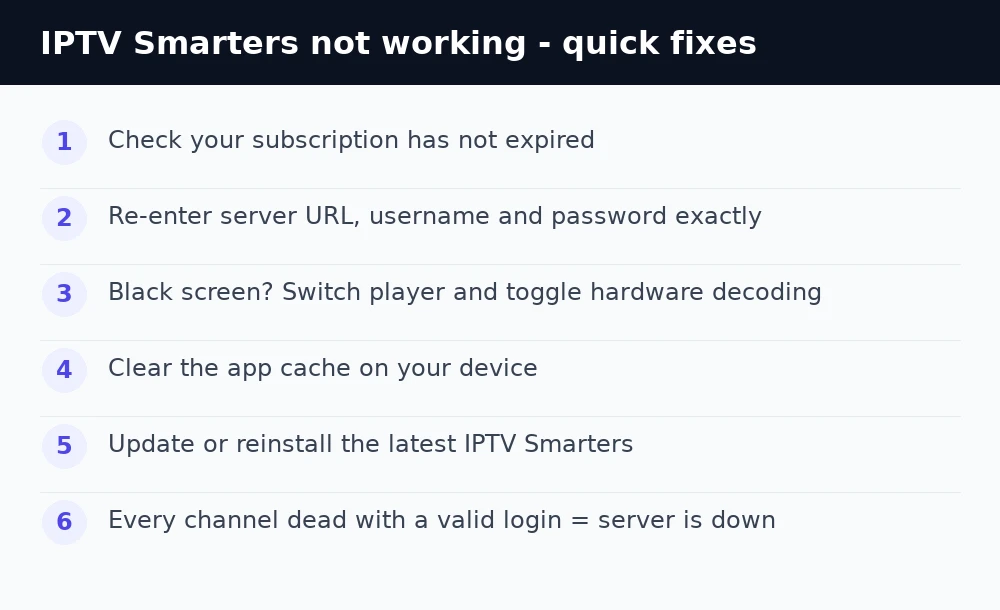
1. Check your subscription has not expired
The number-one reason IPTV Smarters suddenly stops is a lapsed subscription. Open the app, tap your profile, and look at the expiry date. If it has passed, renewing reactivates the same login instantly. If you just signed up and it still fails, your line may not be active yet — give it a few minutes or contact your provider.
2. Re-enter your login exactly
A single wrong character stops everything. Delete the playlist and add it again, copying the server URL, username and password straight from your activation email — watch for spaces, capital letters and http vs https. If you use an M3U link, paste the full URL. New to the app? Our complete IPTV setup guide shows exactly where each field goes.
3. Fix a black screen (audio but no picture)
If channels load and you hear sound but see a black screen, it is a decoder mismatch. In IPTV Smarters open Settings → Player Selection and switch the player — try the built-in player, then Exo or VLC. Toggling hardware decoding on or off fixes the black-screen issue on most Firesticks and Android boxes. Change one setting, reopen a channel, and test.
4. Clear the app cache
A corrupted cache causes freezing, crashing on launch and channels that will not open. On Firestick go to Settings → Applications → Manage Installed Applications → IPTV Smarters → Clear Cache. On Android TV it is under the app info screen. Clearing the cache keeps your login but wipes the corrupted data that stops IPTV Smarters working.
5. Update or reinstall IPTV Smarters
An outdated build stops talking to newer servers. Update from your app store, or if it still fails, uninstall and reinstall the latest APK. A clean reinstall clears broken files and is the most reliable fix when the app crashes the moment it opens. Re-enter your login afterwards.
6. Check the server or a playback error
If the app opens, your login is right, but a specific channel throws an error, see our step-by-step fix for a playback error on IPTV Smarters. If every channel is dead while your login is valid, the provider’s server is down — and no setting on your device can bring it back.
When IPTV Smarters is not working because of your provider
Here is what most guides will not tell you: if your subscription is active, your login is correct, you have cleared the cache and reinstalled, and it still will not play, the problem is the service behind the app. Cheap, oversold providers go offline for hours, especially during live sport, and there is nothing you can fix at home. A provider with load-balanced, anti-freeze 4K servers like iBoostv keeps IPTV Smarters running when weaker services drop out. The app is the same; the network behind it is what actually decides whether it works.
Still not working? Quick checklist
Confirm your subscription is active, re-type the login exactly, switch the player and toggle hardware decoding to kill a black screen, clear the cache, then reinstall the latest version. If every channel is still dead with a valid login, the server is down — move to a provider built for live 4K. For more help see our IPTV troubleshooting hub and the guide to fixing IPTV buffering. If the app rejects your details outright, read what to do when IPTV Smarters says failed to authorize.
Enjoying iBoostv? Get it for free.
Share your referral link and earn a free month for every person who subscribes. No limit — refer enough people and your subscription pays for itself.
Start earning free monthsFrequently asked questions
Why is IPTV Smarters not working all of a sudden?
The most common cause is an expired subscription or a server outage. Check your expiry date first, then confirm your login and clear the app cache.
Why does IPTV Smarters show a black screen?
A black screen with audio is a decoder mismatch. Go to Player Selection, switch between the built-in, Exo and VLC players, and toggle hardware decoding.
How do I fix IPTV Smarters crashing on startup?
Clear the app cache, then uninstall and reinstall the latest version. A corrupted cache or an outdated build is the usual cause of crashes on launch.
IPTV Smarters says my login is wrong - what now?
Re-type the server URL, username and password exactly from your activation email, watching for spaces and http vs https. If it is still rejected, your subscription may be expired or not yet active.
