
IPTV Smarters Failed to Authorize? 7 Fixes That Work
Key takeaways
- IPTV Smarters failed to authorize is a server refusal, not a bug in the app. The app is only reporting the answer it got.
- Seven causes produce the same message. Three questions tell you which one you have, in about 2 minutes.
- Expiry and device limits account for most cases. Neither is fixed by reinstalling, which is why IPTV Smarters failed to authorize survives so many clean installs.
- If your login is correct, the web player also refuses you, and every device fails at once, the fault is the provider and nothing on your side will repair it.
iBoostv · Troubleshooting
The error means the server refused your login, not that you typed it wrong. Find which of the 7 causes you have in 2 minutes, then fix that one.
IPTV Smarters failed to authorize almost always means the server turned your login away. It rarely means you typed something wrong. Four times out of five the line has expired, hit its device limit, or been switched off by the provider. Answer the three questions below and you will know your cause before you change a single setting.
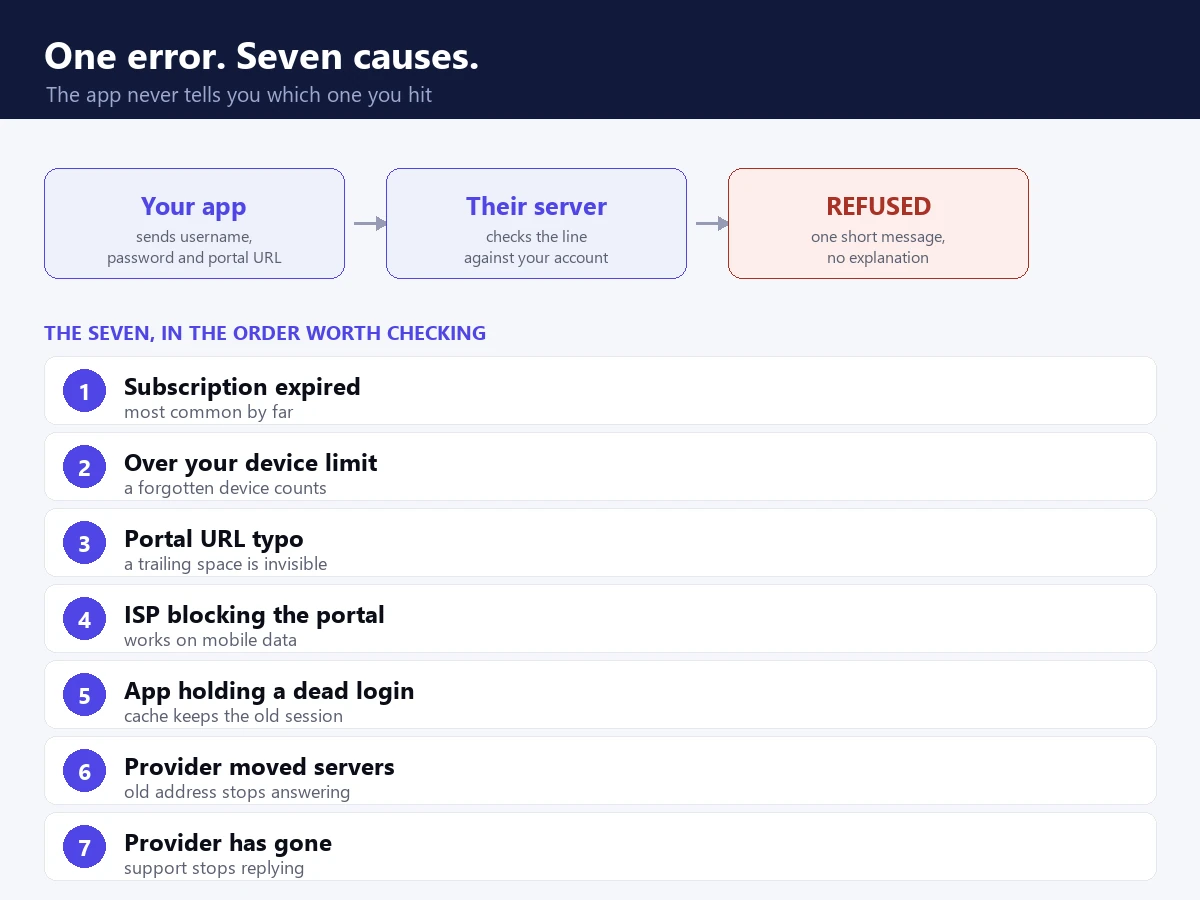
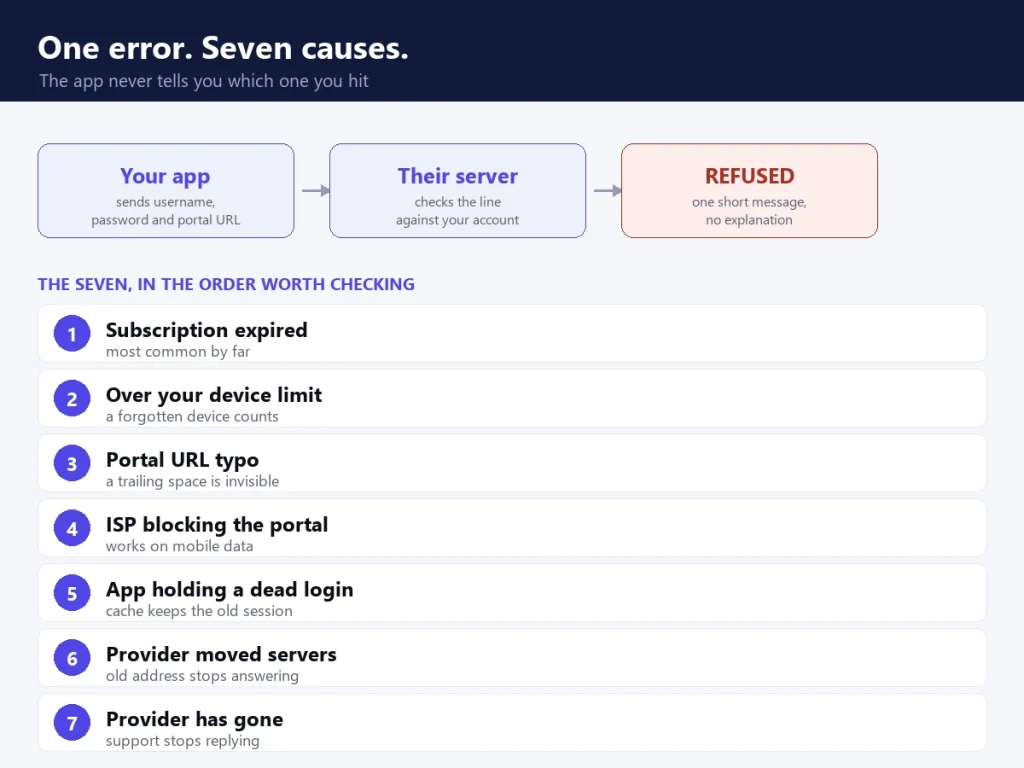
The message tells you nothing useful. IPTV Smarters failed to authorize covers at least 7 different causes, and the app never says which one it hit.
What IPTV Smarters failed to authorize actually means
IPTV Smarters is a player, not a TV service. When you open it, the app sends your username, password and portal URL to your provider. Then it waits for a yes or a no. If the answer is no, you get the same short message every time, because the server never explains itself.
So one error covers a dozen causes. That is why the usual advice fails. Retyping your details and reinstalling the app does not fix the cause, it only guesses at it. Work out which of the seven causes you have, then fix that one.
Here is the part worth holding on to. The app is a messenger. When IPTV Smarters failed to authorize appears, the app did its job and delivered a refusal. Blaming the player, switching to a different one, or clearing data at random treats the messenger instead of the message.
Find your IPTV Smarters failed to authorize cause in three questions
Answer these before you touch anything. Each answer rules out several causes, and the whole check takes 2 minutes. By the end you will know which kind of IPTV Smarters failed to authorize you are dealing with.
1. Does it fail on every device, or only one?
OneYour account is fine. The fault sits on that device. Go to fix 5.
AllThe refusal is coming from the server or your network. Check fixes 1, 3 and 7.
2. Does the provider’s web player work?
YesYour details are right. The app or your connection is at fault. Check fixes 2, 4 and 5.
NoThe account itself is being refused. Check fixes 1, 6 and 7.
3. Did it work yesterday?
YesSomething changed at their end. Expiry, device limit or a server move. Check fixes 1, 3 and 6.
NeverA setup that never worked points at a typo or an inactive line. Check fixes 1 and 2.
1. Does it fail on every device, or only one?
Sign in on a phone using mobile data instead of your home Wi-Fi. If the phone works but your TV does not, your account is fine. The problem sits on that one device, so go to fix 5. If every device refuses, look at fixes 1, 3 and 7 instead.
This one question does more work than any other. It splits every IPTV Smarters failed to authorize case into two groups, and it costs you nothing but a minute on your phone.
2. Does the provider’s web player work?
Most providers give you a browser player as well as the app. Sign in there. If the web player streams but IPTV Smarters failed to authorize keeps appearing, your details are right and the app or network is at fault. If the web player also rejects you, the account is the problem.
3. Did it work yesterday?
A setup that ran fine and then stopped points at expiry, a device limit, or a server move. Check fixes 1, 3 and 6. A new setup that never worked points at a typo or an inactive line instead, so try fixes 2 and 1.
Fix 1: expiry, the most common IPTV Smarters failed to authorize cause
This is the most common cause by a wide margin. When IPTV Smarters failed to authorize shows up out of nowhere, look here first. Lines expire quietly, and the app gives you no warning.
Check the expiry date in your activation email, or ask your provider. If you renewed but nothing changed, the payment may not have reached them. They may also need to reactivate the line by hand. Ask them to confirm the line is switched on, not just paid for. Those are two different things, and providers mix them up often.
One detail catches people out. A renewal can register on the billing system and still leave the line dormant until somebody presses a button. If your receipt says paid and the app still refuses you, that gap is usually where the problem lives. Say the words “please confirm the line is active” rather than “I paid”, because those get different answers.
Fix 2: the portal URL has a typo you cannot see
One wrong character stops everything. The usual culprits are invisible on screen.
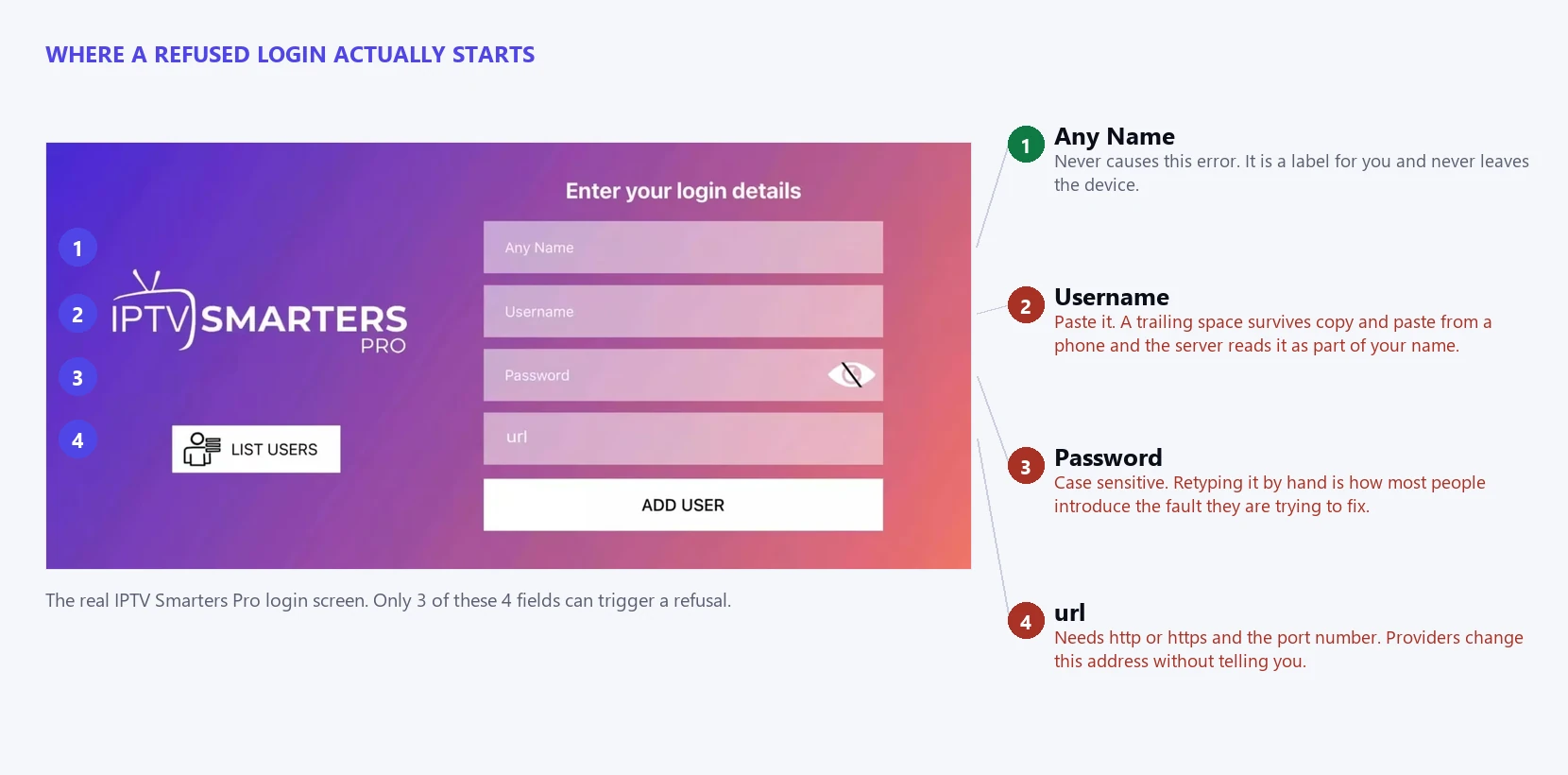
Four fields, and 3 of them can silently break your login. One wrong character here is enough to trigger IPTV Smarters failed to authorize.
Delete the profile, then add it again. Copy each field straight from your activation email. Watch for four things: a space at the end of the username, http where the server needs https, a missing port number, and a capital letter that should be lower case. Never retype the portal URL by hand if you can paste it. Our IPTV Smarters setup guide shows where each field belongs.
The trailing space is the one that fools everyone. It is invisible, it survives a copy and paste from a phone email client, and the server reads it as part of your username. If you have retyped your details 3 times and still see IPTV Smarters failed to authorize, delete the last character of the username and type it again by hand.
Fix 3: IPTV Smarters failed to authorize from a device limit
Most plans allow one or two streams at a time. Go past that and the server refuses new logins, even though your account is fine.
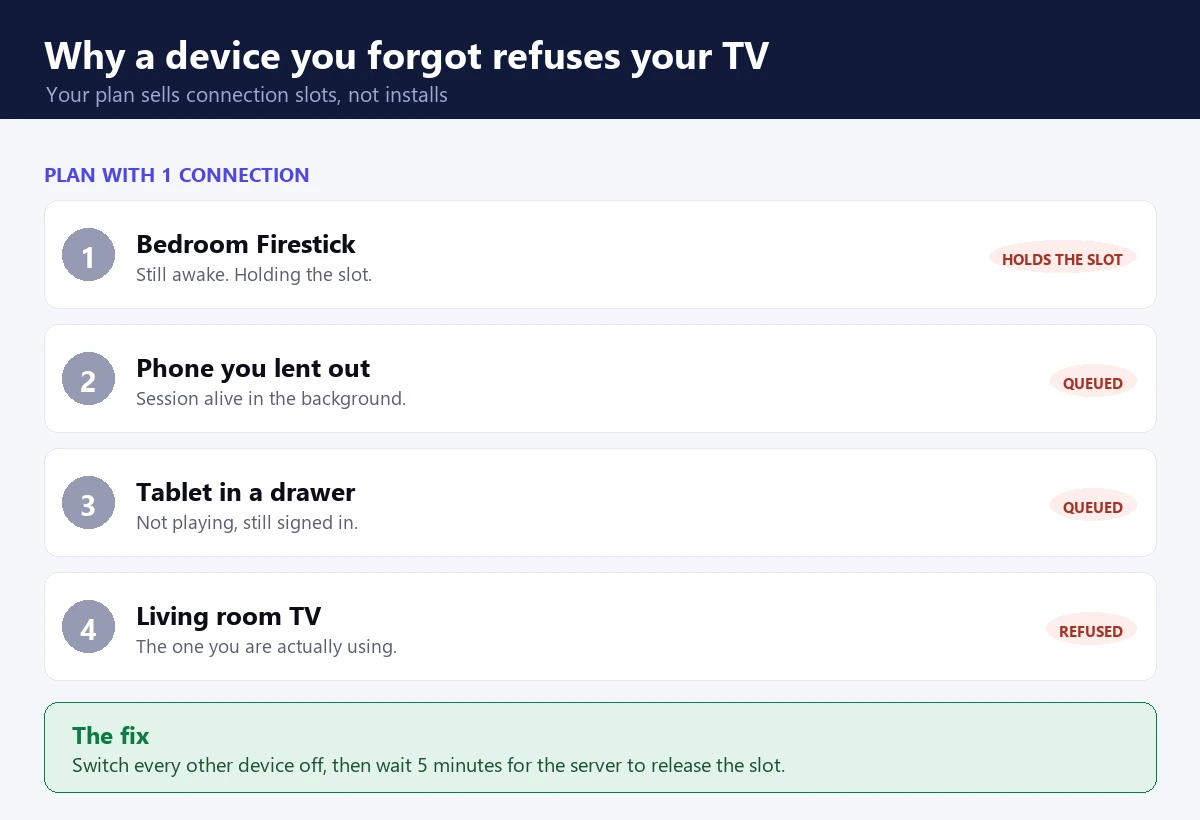
A forgotten tablet still counts. Device limits are the second most common reason IPTV Smarters failed to authorize appears with no warning.
Think about every device that still has your details saved. An old Firestick in the bedroom. A phone you lent to family. A tablet you forgot about. Each one may hold a connection open. Turn them all off, wait 5 minutes for the server to release the slots, then sign in again. If that clears it, you need either stricter household rules or more connections on your plan.
Worth knowing: a device does not have to be playing anything to hold a slot. Some apps keep the session alive in the background for several minutes after you press the home button. That is why waiting matters more than people expect, and why the fix seems not to work when you retry after 20 seconds.
Fix 4: your ISP is blocking the server
Some internet providers block IPTV portals outright. When they do, the app cannot reach the server, so you see the same error.
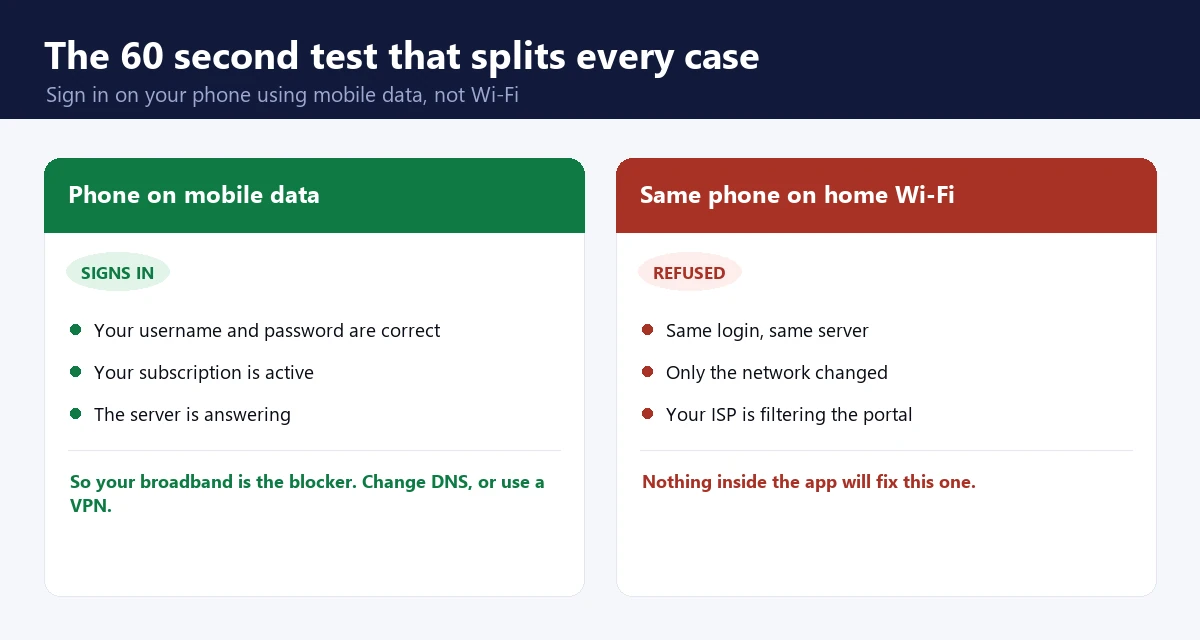
If your phone signs in on mobile data but nothing works on home Wi-Fi, the router is causing your IPTV Smarters failed to authorize error.
Question 1 gives this away. If your phone signs in on mobile data but nothing works on home Wi-Fi, your broadband is the blocker. Our guide on bypassing ISP blocks on IPTV covers the fix. Changing your DNS sometimes helps, although a VPN is more reliable.
Here is the honest limitation. A DNS change only helps when your provider blocks by name lookup. Plenty block by IP address instead, and no DNS setting touches that. If 1.1.1.1 makes no difference within a minute, stop trying DNS variants and test a VPN, because you are dealing with the other kind of block.
Fix 5: a stale cached login keeps IPTV Smarters failed to authorize on screen
IPTV Smarters caches your session. Once that cached copy goes stale, the app keeps sending the old details and keeps getting refused. It does this even after you correct them.
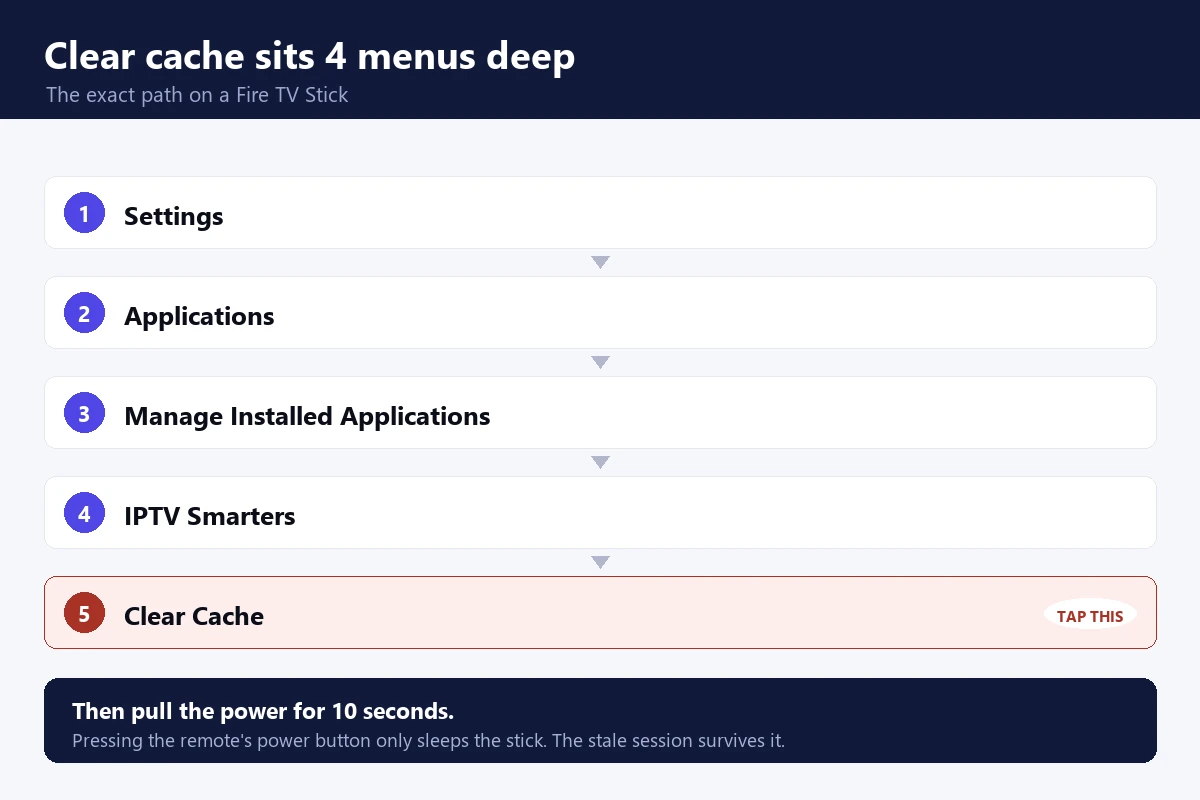
Clear cache sits 4 menus deep on a Fire TV Stick. Skipping the full restart is why IPTV Smarters failed to authorize often survives this fix.
On a Firestick, go to Settings, then Applications, then Manage Installed Applications, then IPTV Smarters, then Clear Cache. On Android TV the same option sits in the app info screen. Clear the cache, remove the profile, then restart the device properly rather than just sleeping it. Add your details fresh afterwards. Skipping the restart is why this fix often seems not to work.
Pulling the power for 10 seconds is a real restart. Pressing the remote’s power button is not, because that only sleeps the stick and the stale session survives it. On a Firestick that distinction is the whole fix, and it is the single most common reason people tell us clearing the cache did nothing.
Fix 6: your provider moved servers without telling you
Providers change their portal address now and then. It often follows an outage or a domain problem. Your username and password stay the same, but the old address stops answering. So IPTV Smarters failed to authorize appears on every device at once.
Nothing on your side fixes this. The app is dialling an address that no longer exists, so IPTV Smarters failed to authorize is the only answer it can give you. Ask your provider for the current portal URL, then update it in the app. A provider worth paying emails you before a change like this, not after.
Fix 7: the provider has gone for good
Sometimes the server is not moving. It is gone, and IPTV Smarters failed to authorize is how you find out.
Small resellers vanish often, and they rarely say so. The warning signs are easy to read. Support stops replying. The website goes offline or throws certificate errors. Other customers report the same failure on the same day. If all three line up, your subscription is finished no matter how many months you paid for.
Fixing IPTV Smarters failed to authorize on each device
The cause is the same everywhere, but the menus are not. Use whichever of these matches the screen showing IPTV Smarters failed to authorize.
Fire TV Stick. Settings, Applications, Manage Installed Applications, IPTV Smarters, Clear Cache. Then unplug the stick at the wall for 10 seconds. Re-add the profile by pasting each field.
Android TV and Google TV. Settings, Apps, See all apps, IPTV Smarters Pro, Storage, Clear cache. Restart from the power menu rather than the remote. If the box has been on for weeks, a full reboot alone sometimes clears the refusal.
Samsung and LG smart TVs. There is no cache button. Remove the app, restart the TV at the mains, then reinstall. It is slower than the Firestick route and there is no way around it.
iPhone and iPad. Delete the profile inside the app first, then offload the app in iOS Settings if it still refuses. Reinstalling without removing the profile keeps the stale session, which is why an iPhone can go on showing IPTV Smarters failed to authorize after a clean reinstall.
Windows and Mac. Sign out, quit the app completely, then reopen. On Windows check that the app is not being held by a VPN client that started with the machine.
How long each fix should take
If a fix has not cleared IPTV Smarters failed to authorize inside the time below, it is not your fix. Move to the next one rather than repeating it.
Under 1 minute: testing on mobile data, checking the web player. Under 5 minutes: deleting and re-adding the profile, clearing the cache and restarting. 5 to 10 minutes: shutting down every other device and waiting for the slots to release. Hours or days: anything that depends on your provider replying, which includes expiry, reactivation and a new portal URL.
That last line is the one people ignore. If you have spent an evening staring at IPTV Smarters failed to authorize, the useful question is not which setting to try next. It is how long you are willing to wait for a reply that may never come.
When IPTV Smarters failed to authorize is your provider’s fault
Here is the part most guides leave out.
Say your account is active. Your login is correct. The web player refuses you too, and every device shows IPTV Smarters failed to authorize at the same moment. You have now done everything you can. Nothing in the app will fix a server that is switched off.
At that point the real question changes. It is no longer how to repair the connection. It is whether the service deserves another payment. A provider with real servers and real support does not vanish mid-plan. If yours has, iBoostv runs 4K servers built for live sport and activates new accounts in minutes, so you can watch again tonight.
Still refused?
If the line is dead, no setting in the app brings it back.
Expired lines, silent device caps and vanished resellers cause most of these refusals. That is the one part you cannot troubleshoot from your side, and it is the one part switching providers actually solves.
Just testing? Start with 1 month — $13.99
14-day money-back guarantee
4K quality · 1–4 connections · Works on Firestick, Smart TV, Android, iOS, Mag & Roku
IPTV Smarters failed to authorize: quick checklist
Run these in order and stop as soon as one clears IPTV Smarters failed to authorize. First, confirm the line is active and switched on, not merely paid for. Next, delete the profile and paste your details in fresh. Then shut down every other device and wait 5 minutes. After that, test on mobile data to rule out your broadband. Finally, clear the cache and restart the device fully.
Still nothing? Ask your provider for the current portal URL. If they do not answer, you already have your answer.
For related problems, see our fix for a playback error on IPTV Smarters, the guide to IPTV Smarters not working, or the full IPTV troubleshooting hub. You can also check current app builds on the current IPTV Smarters build on Google Play.
Enjoying iBoostv? Get it for free.
Share your referral link and earn a free month for every person who subscribes. No limit — refer enough people and your subscription pays for itself.
Start earning free monthsFrequently asked questions
Why does IPTV Smarters failed to authorize keep appearing?
The server rejected your login. Usually the subscription has expired, you are over your device limit, or the provider switched the line off. It is rarely a typing mistake.
How do I fix IPTV Smarters failed to authorize?
Check the line is active first, then delete and re-add your profile by pasting the details. Next turn off every other device and wait 5 minutes. If it still fails, clear the app cache and restart the device fully.
Why does IPTV Smarters work on my phone but not my TV?
Your account is fine, so the fault is on the TV. Clear the app cache, remove the profile, restart the device, then add your details again. If the phone only works on mobile data, your broadband is blocking the server instead.
Does IPTV Smarters failed to authorize mean my subscription is finished?
Sometimes. If your login is correct, the web player also refuses you, and every device fails at once, the line has been switched off or the provider has gone. Ask them for the current portal URL. No reply is its own answer.
Does reinstalling fix IPTV Smarters failed to authorize?
Rarely, and only when the stored profile was the problem. A reinstall that keeps the old profile keeps the stale session with it. Remove the profile first, then reinstall.
