
Every platform the app runs on, plus the playlist upload step that stops most people on their first try.
Get your IPTV subscriptioniBoostv isn't affiliated with HotPlayer or its developer. This guide covers installing their app. The subscription we sell is a separate product you load into it.
Most people install Hot Player, open it, and find an empty screen. Nothing is broken. The app ships with zero channels, and the developer says exactly that on their own homepage. It's a shell, and what fills it is a playlist you supply yourself.
That upload step is where almost everyone gets stuck. Installing takes 2 minutes on most devices. Getting content into it is the part worth reading twice, so we'll cover all 6 platforms first, then the bit that actually makes it work.
It's a media player, version 2.2.5 at the time of writing, and it reads M3U links and Xtream Codes logins. That is the whole job.
It won't give you channels and it won't find content for you. Install it, open it, and the list stays empty until a playlist goes in. The developer, STE DIGI VIBES, states on the official Hot Player site that no content is included and that they hold no connection to any provider. Take that at face value, because it changes what you need to buy.
You need two things: the app, and a subscription that hands you either an M3U link or a set of Xtream Codes details. They come from different places and one is useless without the other.
Have these ready and the whole thing takes a few minutes rather than an evening.
One habit saves a lot of frustration later: do the first install on a phone or a Windows machine, confirm the playlist works, then move to the TV. Debugging a typo with a remote control is miserable.
There's no Amazon Appstore listing, so this one needs the Downloader app. It's the longest install of the 6, and it's the one people abandon halfway.
Two things trip people at step 2. Downloader needs its own permission under Install unknown apps, and flipping a global toggle isn't enough. And if the file downloads but Install stays greyed out, you're out of storage. Delete an app you don't use and run it again.
Check the version number in the app settings once it is installed. Anything older than 2.2.5 is worth updating before you troubleshoot anything else, because a stale build sits behind a surprising share of playback complaints. Store installs update themselves. Sideloaded Firestick copies do not, so you repeat the Downloader step to move up a version.
A 2nd generation Fire TV Stick will run this fine. The original 2014 stick struggles, and no setting fixes that.
Both have official listings, so this is the short route. On Samsung, open the Apps panel from the home bar, hit the search icon, type the app name, select Install. On LG, open the LG Content Store and search the same way.
When it opens, the screen shows a MAC address and a device key. Write both down. You'll want them in about 2 minutes.
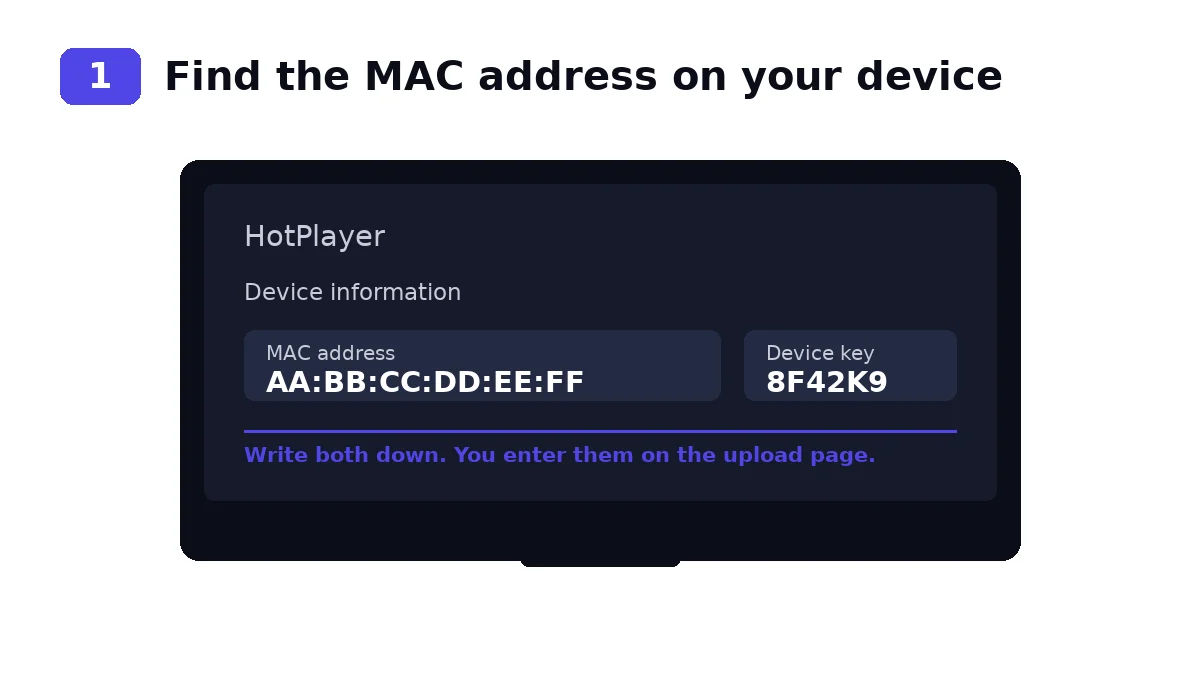
Older sets are the catch, and it's worth saying plainly: if your Samsung predates 2017 or your LG runs webOS 3 or older, the listing often won't appear at all. There's no workaround for that. A cheap Android box or a Firestick plugged into the same TV solves it for about $30.
Google Play carries it. Search, install, open. Same on Android TV boxes that ship with Play services, which covers most Nvidia Shield, Chromecast with Google TV and mainstream box models.
On a box without Play, grab the APK from the official site through a browser or Downloader and install it that way. Android asks you to allow installs from that specific app the first time you try, and that prompt is easy to dismiss by accident.
Phones are the fastest way to test a new playlist. If it plays on your phone over mobile data but stalls on the TV, you've just proved the problem is your home network rather than the subscription.
Roku has an official channel. Add it from the Channel Store on the device, or from the Roku website while you're signed in, and it lands on your home screen inside a minute.
Roku is the most locked down of the 6 platforms. No sideloading, no APKs, nothing to configure. That cuts both ways: it's the simplest install here, and if the channel ever gets pulled from the store there's no fallback whatsoever.
The Microsoft Store lists it. Search, click Get, and it installs like anything else from the Store.
This is the version I'd use to test a playlist before touching the TV. A keyboard beats a remote when you're pasting a long Xtream Codes URL, and if the login is wrong you'll see the error in seconds instead of squinting at a television across the room.
| Device | Where it comes from | Sideload needed | Rough time |
|---|---|---|---|
| Roku | Roku Channel Store | No | 1 min |
| Samsung | Samsung Apps | No | 2 min |
| LG | LG Content Store | No | 2 min |
| Android | Google Play | No | 2 min |
| Windows | Microsoft Store | No | 2 min |
| Firestick | Downloader, APK | Yes | 8 min |
If you have a choice of screens and you just want it working tonight, start with Roku or Windows. Leave the Firestick for when you have patience.
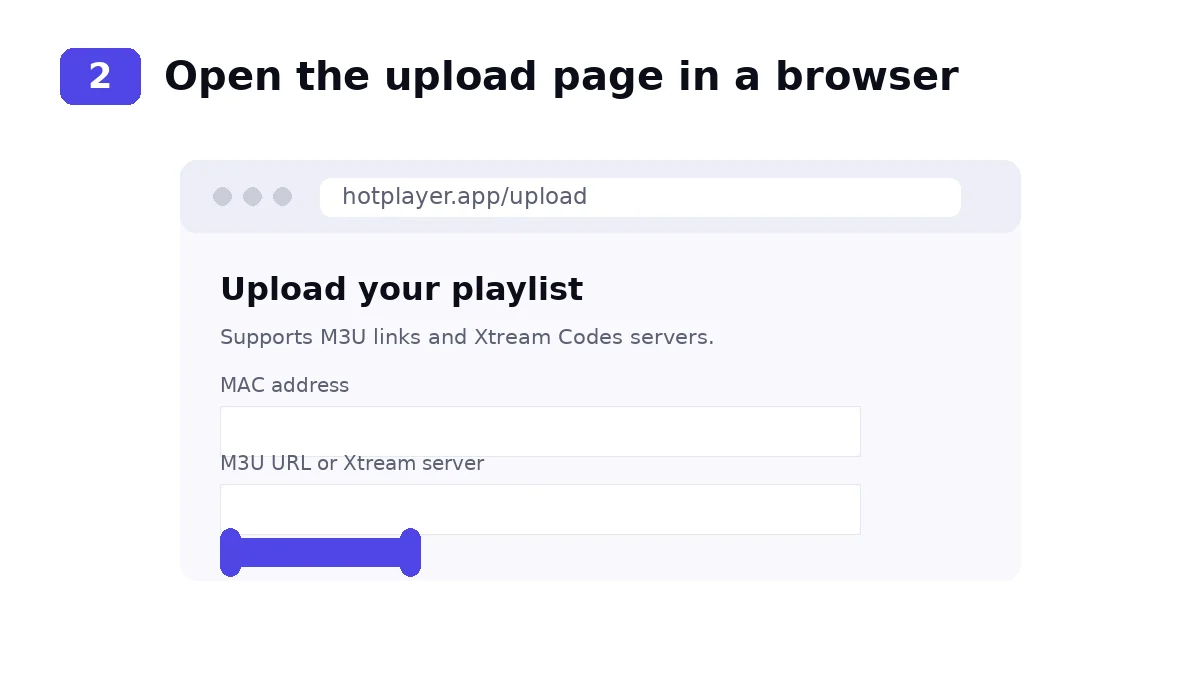
This works differently from IPTV Smarters, and the difference catches people out. You don't type your login into the app. You upload it on the developer's website, matched to your device's MAC address.
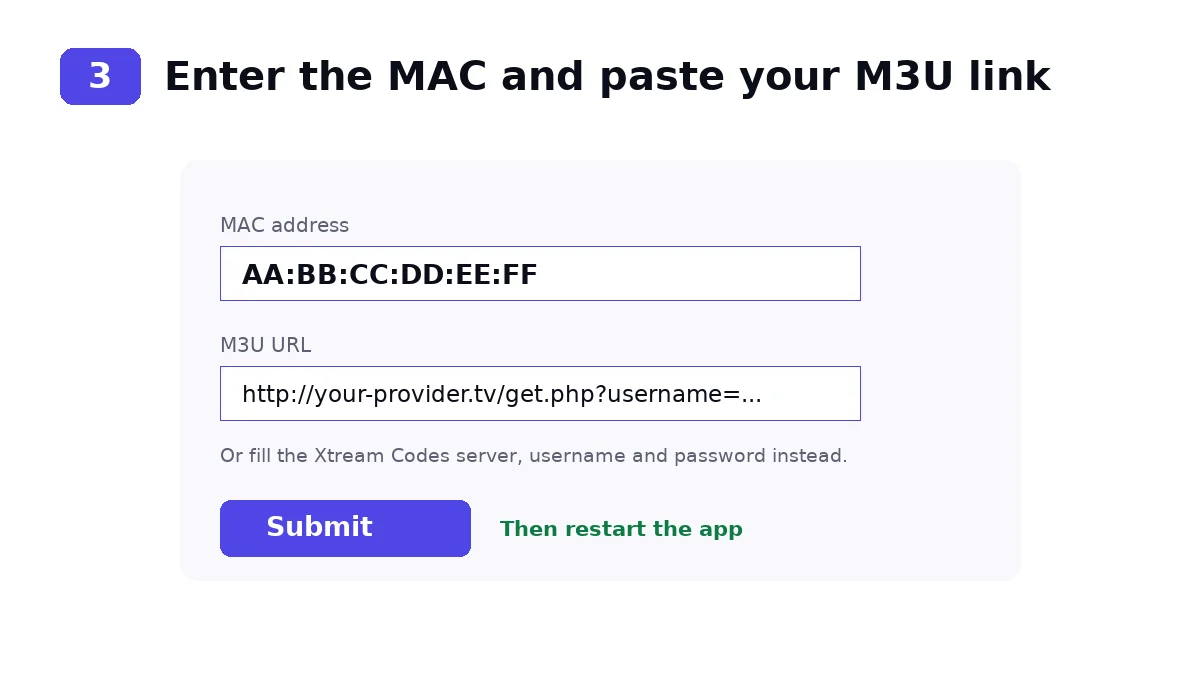
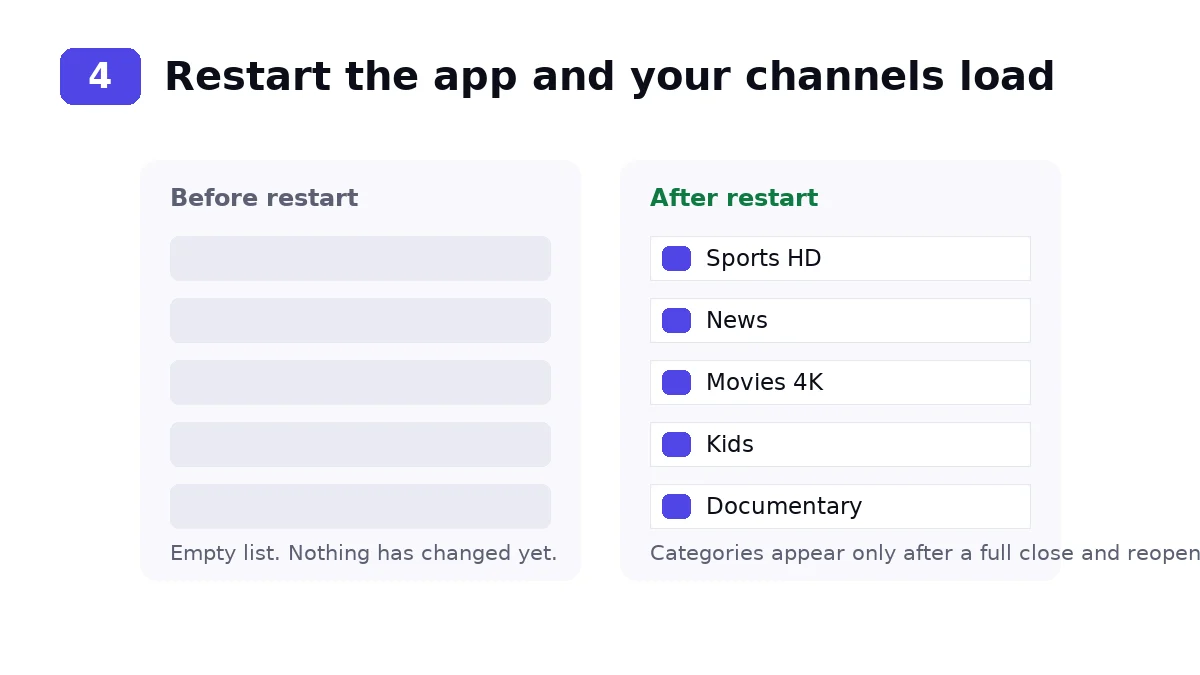
Categories load on restart, not before. This is the single most common question we get about Hot Player: someone submits the form, stares at the TV, sees the same empty list, and assumes the playlist is dead. Close the app properly and open it again.
Most providers hand you both. They're two ways of delivering the same channels.
An M3U link is a single long URL. Paste it once and you're done, which makes it the quicker option. The downside is that it carries no separate category structure in some setups, and if your provider rotates the URL you have to upload again.
Xtream Codes splits the same thing into a server address, a username and a password. It's 3 fields instead of 1, so there's more to mistype, but it usually gives cleaner categories and a proper TV guide. Given the choice I'd use Xtream Codes and accept the extra 30 seconds of typing.
If your provider only sends one of the two, that's the one you use. There's no advantage to converting between them, and our M3U to Xtream Codes guide covers the cases where you genuinely need to.
You will also need a subscription
The player is installed. Now it needs channels.
IBO Player Pro is only the app — it arrives empty. To watch anything you need an IPTV subscription to load into it, using the same MAC address and device key from the steps above.
Just testing? Start with 1 month — $13.99
14-day money-back guarantee
4K quality · 1–4 connections · Works on Firestick, Smart TV, Android, iOS, Mag & Roku
Playlists live on the developer's server against your MAC, not on the device. That has a useful side effect: reinstalling the app doesn't wipe your setup, and a factory reset of the TV doesn't either, as long as the MAC stays the same.
To swap providers, go back to the Upload page and submit the new details for the same MAC. The old playlist is replaced. There's also a Delete option on the site if you want the device cleared entirely, which is the one to use before you sell a TV or hand a box to someone else.
Do the delete before you sell it. A playlist tied to a MAC address you no longer control is a line someone else can watch on your subscription.
Every device has its own MAC address, so every device needs its own upload. Installing on a second TV doesn't copy anything across.
The part people miss is on the subscription side. One connection means one stream at a time, so 2 people watching different channels need 2 connections. Our plans run from 1 to 4, priced at $59.99, $109.99, $149.99 and $189.99 for 12 months. If the second TV throws an error the moment the first one starts playing, that's the reason, and no amount of reinstalling fixes it.
The list is still empty after uploading. The MAC address you entered doesn't match the device. Use the one printed on the app's own screen, not the sticker on the back of the TV and not your router's address. They're different, and the sticker one is the usual mistake.
Channels appear but nothing plays. That's your provider, not the app. Test the same login in a second player on a different device. If it fails there too, the line is the problem and your provider needs to fix it.
It works on your phone but not the TV. Two possible causes. Either the TV has its own MAC that never got an upload, or you're out of connections. Check the upload first, since it costs nothing.
Constant buffering. Wire the device if you can, switch DNS to 1.1.1.1, and raise the buffer setting in the app. If it stutters across every device and every time of day, the servers are oversold and that's a provider problem. Our IPTV troubleshooting guide walks through the full sequence.
The app won't open after an update. Clear its cache from your device settings, and reinstall if that doesn't shift it. Your playlist survives, because it lives on their server rather than on the device.
The picture is soft on a 4K TV. Check what the channel is actually broadcasting. Plenty of channels are 1080p at source, and no player upscales its way out of that.
The TV guide is blank. Hot Player pulls guide data from whatever your playlist supplies, so an empty EPG almost always means your provider isn't sending it on that line, or is sending a format the app skips. Ask them to confirm the EPG URL is part of your Xtream Codes setup. If they can't, channels still play and you simply lose the schedule. That is the one limitation here that nothing on your side will fix.
Audio plays but the screen stays black. Usually a codec the device can't handle rather than a dead stream. Try the same channel on a phone. If it plays there, the TV is the limit, and an external box solves it.
Both do the same job, and the honest answer depends on your device. This one has wider official store coverage, with Roku, Samsung, LG and Google Play all listing it. IBO Player Pro doesn't reach Roku at all.
On a Firestick I'd take IBO Player Pro instead. The Downloader route is better documented, the app is lighter, and you skip the storage problems that sideloading throws up. Our IBO Player Pro Firestick guide covers that install step by step. On Roku the choice makes itself.
The Downloader code is 395800. Open the Downloader app on your Firestick, type 395800 into the URL box and press Go. If you would rather type the address in full, it is apk.hotplayer.app. Remember to switch on Install unknown apps for Downloader first, or the install will fail at the last step.
Pricing depends on the store you install from and the developer sets it. What's consistent is that the app fee never includes channels. You're paying for the player only.
No. The developer states plainly that no content is included and that they have no link to any provider. You supply your own M3U or Xtream Codes playlist.
It tells the upload page which device to send your playlist to. Every install shows its own MAC on first launch, and you enter that exact string on hotplayer.app.
Either the MAC didn't match, or you haven't restarted since uploading. Close the app fully and reopen. If it's still empty, re-check the MAC character by character including the colons.
Yes, but upload the playlist separately for each device's MAC, and make sure your subscription includes 2 connections. One connection means one stream at a time.
No, which is why Firestick owners sideload through Downloader. Roku, Samsung, LG, Google Play and the Microsoft Store all carry it directly.
No. The playlist is stored against your MAC address on the developer's server, so it comes back when you reopen the app. Use the Delete option on their site if you actually want it gone.
The app stays empty until you feed it. An iBoostv subscription gives you 40,000+ live channels, every major sport and 200,000+ movies in 4K, with a 14-day money-back guarantee.
